Tech Tip: Using the Aras RESTful API
Aras Innovator 11 SP12 introduced a RESTful API that can be used to query and edit Aras items. Most of the time, these REST calls will be sent to the Aras server by an external application or integration. You can find a sample AngularJS app that uses...2.1KViews0likes0CommentsAras Best Practices: Server-side Code
When it comes to Aras best practices for server-side code there are two goals: Reduce the number of queries sent to the server. Reduce the volume of data retrieved from the server. Applying the following best practices to your server-side...1.4KViews0likes0Comments
An Introduction to Query Builder and Tree Grid View
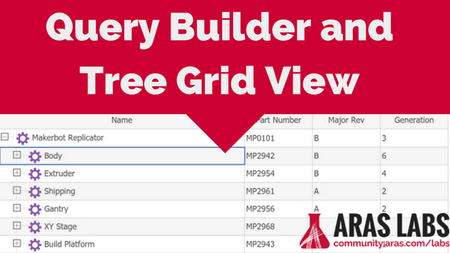
Two powerful solutions were introduced into the Aras Platform in 11.0 SP10: Query Builder (QB) and Tree Grid View (TGV). QB is a tool for building powerful, reusable AML queries using a graphical user interface. TGV displays the results of one of the...600Views0likes0CommentsAdvanced AML Topics
In a previous blog post, we gave an introduction to AML and covered the basic structure of an AML request. While the simple concepts covered in that post are powerful enough for many use cases, you can make your AML requests even more useful with just a few simple tweaks by adding attributes to your requests.500Views0likes0CommentsCustomizing Your Aras Forms: Part 2
As we covered in the first part of our blog series, the possibilities for your Aras forms extend beyond the configuration options in the Aras Form Editor. In this article, we'll see how we can combine a little CSS and Javascript to apply custom ...399Views0likes0CommentsHelpful Resources for Aras Innovator
Updated 9/6/19. Whether you're just starting your journey with Aras Innovator or you know the platform inside and out, this living list of helpful resources will come in handy. Looking for a resource or topic you can't find below? Let us know in the ...399Views0likes0Comments
Aras Fundamentals: Creating a Custom Permission
Permissions play a big role in how administrators handle authorization for their users’ access privileges. This includes what items can be updated, deleted, accessed, discovered, etc. In this blog post we will be building from the Aras Fundamentals: Creating an ItemType post in which we created a custom Purchase Order ItemType. Let’s say we want to create a custom Permission called Purchase Order Managers for users who should be able to create, get, update, and discover Purchase Orders. In our example we will add two individuals, Mike Miller and Aaron Lee, to our new Permission. We also want to allow all employees to be able to read, get and discover these items but not be able to edit them. Innovator admin should also get all privileges managers receive including the ability to change access. Creating our New Permission Before we create our new Permission make sure you are logged in as Innovator Admin. Once that is set go to the TOC > Administration > Permissions and choose Create New Permission. Give it the name of Purchase Order Managers. In the relationships tab click the select icon which will prompt the search grid. Quick note: the main distinction between "get" and "can discover" is that the latter restricts one to only being able to view a list of Items while the prior allows one to open an item from search in a read only view. Next search and select the following identities by clicking the select button : Mike Miller Check the following boxes: Get, Update, Delete, Can Discover, and Show Permissions Warning Aaron Lee Check the following boxes: Get, Update, Delete, Can Discover, and Show Permissions Warning All Employees Check the following boxes: Get, Can Discover, and Show Permissions Warning Innovator Admin Check all the boxes except for Show Permissions Warning Please note that these identities, such as Mike Miller and Aaron Lee are within my database. Feel free to choose whichever users you would like for this example. However, be sure to include Innovator Admin and All Employees. The new Permissions should look like this: Adding our Changes to the Custom ItemType Next be sure to remove the world identity set from the previous blog post. We can do this by going to the TOC > Administration > ItemTypes. Another quick note: the difference between "World" and "All Employees" is world includes any user within the system. This includes all admins such as ES admin, while the latter is only for individuals in your organization (the only admin in this identity is Innovator Admin). Now in the search look for the Purchase Order ItemType we created previously. In the relationships section click on the Permissions tab: Search and select Purchase Order Team in the grid by clicking the select button Select World and hit the delete button to remove Also make sure to select Is Default Validating our Changes Now let’s confirm the permissions are set correctly by creating a new Purchase Order. Go to the TOC then scroll down and right click on our new ItemType and select Create New Purchase Order. We’ll call this “Purchase Order 1” and give it a price of “20”. Now log out and sign back in as Mike Miller and go back to the TOC > Purchase Orders > Search Purchase Orders. Click the search and open up Purchase Order 1. Since Mike Miller has update privileges, we can select the edit button and change the price to 30. We can take this a step further and test to make sure the All Employ identity truly does not have the same update access. This means they should only be able to read, get, and discover. Log out Mike Miller and sign back in as Terry Adams who is part of the All Employees identity. Go back to the Purchase Order we created and try to make an edit; you should receive the following error: In Conclusion You just saw how to create a new permission and assign it to different users within your organization accordingly. Following along with our blog series we have learned how to not only create a custom ItemType, but now how to add a custom Permission! This ensures that Employees can only create new Purchase Orders but in order to delete an existing Order this must be managed by either a manager or a system administrator.300Views0likes0Comments