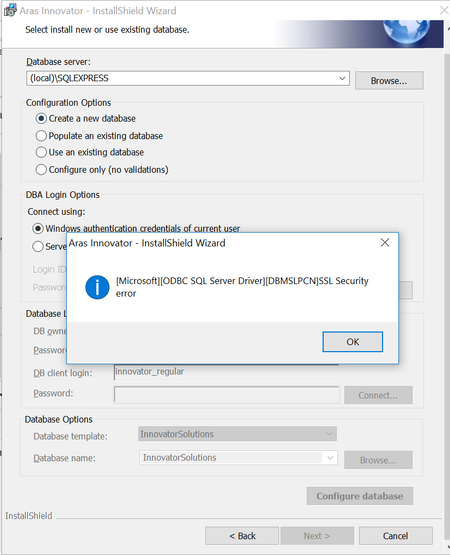
On the Aras Innovator login screen, the database drop-down list does not show any entries.
After installing Aras Innovator, I attempted to log in, but the database drop-down list is empty. I expected the database created during the Aras Innovator installation to appear in the list. Could you please tell me why the database drop-down list is empty? The versions are as follows: Aras Innovator: 14.35 SQL Server: 2022 Express Microsoft .NET: 8.0.16 I followed the installation procedure from the link below: https://aras.com/ja-jp/blog/aras-innovator-install65Views0likes1Comment
Aras Update Guide: Self-Upgrading Innovator Independently
After plenty of trial and error – and some much-needed help from Aras Denmark – we finally got the Aras Update application working. We wanted to handle upgrades independently to reduce reliance on the upgrade team and speed up our deployment cycles. The catch? The Aras Update installer only runs smoothly on a clean, out-of-the-box Innovator installation, which is rarely the case in real-world production environments. To save others from the same headaches, I’ve documented the steps for anyone brave enough to attempt a self-upgrade. Note: This process is supported from Release 14 onwards. It’s recommended that an experienced software engineer performs these steps. Attempt at your own risk. 1. Prepare a Clone of Production Install your current Aras version on a separate machine using the ‘Configure Only’ option. Restore a recent production .bak file in SQL Server Management Studio. Run the following queries against the cloned database: exec sp_change_users_login 'Update_One', 'innovator', 'innovator'; exec sp_addrolemember 'db_owner','innovator'; exec sp_change_users_login 'Update_One', 'innovator_regular', 'innovator_regular'; exec sp_addrolemember 'db_owner','innovator_regular'; Update the InnovatorServiceConfig.xml with the correct SQL connection string 2. Install Prerequisites Install all required prerequisites from the Installation Guide PDF for the desired target version. 3. Back Up Your Code Make a backup of the Innovator folder (your code tree). 4. Download the Patch Get the desired patch from the Aras FTP. You do not have to go through each version. E.g., you can go from Release 26 to Release 34 directly. 5. Customize Patch Files In the following files, append a custom suffix to the <name> property (e.g., <name>VersionServiceUpdate[YOURCOMPANYNAME]</name>): VersionBuild.xml VersionLabel.xml VersionMajor.xml VersionMinor.xml VersionServiceUpdate.xml 6. Launch Aras Update Run Aras Update as Administrator. 7. Add the Patch Package Click ‘Local’ in the left menu and add a new package. Select the extracted patch folder. 8. Install the Patch Click ‘Install’ in Aras Update. 9. Update Each Module For each applicable module: Select only one module at a time (this helps isolate issues). Enter the required application/server/SQL credentials. Click ‘Install’. If errors occur: Login to Innovator failed: Check prerequisites and ensure IIS is running. TRUNCATE or FOREIGN KEY errors: Compare the affected ItemType with one from a clean install. Adjust the related XML file in .\Aras Innovator 34 Patch\Imports\com\aras\innovator\ as needed, or temporarily remove it from the manifest (keep a backup for step 11). Oftentimes, it has something to do with property lengths, foreign properties and permissions. Innovator Variables issues: Revisit step 5. GetMethodsKey endpoint (500 Internal Server Error): Make sure a user with loginname clientadmin exists in the database. Add it through nash.aspx Other: If you hit something else, prepare for some blood, sweat, and forum searches – or maybe it’s time to reach out to the support team. Do not forget to leave the error message and solution in the comments down below. Tip: if you need many attempts running the Aras Update installer, do not click 'Exit' when it fails. If you click 'Home' instead you do not have to enter the server credentials every attempt. 10. Verify the Update If the update completes without errors, try logging in. If login fails: Use the NASH endpoint (e.g., localhost/.../nash.aspx) to manually execute the contents of any removed XML manifest files. Use DevTools (F12 > Network) to check for failed requests. 11. Test Everything Test all features and modules. If Aras features have changed, manual conversion may be needed. I recommend writing down test plans with relevant key-users to confirm everything still works Review Release Notes for all versions between your source and target version and perform tests accordingly. Keep a checklist of manual actions required. Repeat the entire process – including running the Aras Update installer and performing all your documented manual actions – until a clean test environment upgrades completely without errors or issues, and all tests pass, before moving on to the cutover step. 12. Plan Production Cutover Schedule a cutover weekend to upgrade production. Run your customized Aras Update Patch and complete any manual steps identified in testing. Congratulations You’ve now performed a self-upgrade. Time to celebrate. Just remember: this isn’t formal documentation, and I’m not responsible for any production issues you may face as a result of following these steps.534Views8likes7CommentsConnecting to Linked Server (External SQL Database)
Hello all, After many attempts and support of Aras Support, we are still unable to execute SQL Stored Procedures on an external SQL database. Context Aras Innovator Version 26 SQL Server 2017 Goal Execute a Stored Procedure on an external SQL server (NOT the Aras SQL server itself) from a C# Server Method. Attempts Making a connection using Microsoft.Data.SqlClient and the legacy System.Data.SqlClient. This involves using a connection string and executing a plain command. Used code: [embed:dc8ab71f-3b98-42d9-b0f6-e21e02a0f8e2:f6796336-b0f8-4284-bca3-4d7d91f97dd5:type=csharp&text=Innovator%20inn%20%3D%20this.getInnovator%28%29%3B%0A%0Astring%20connectionString%20%3D%20%40%22Data%20Source%3DServerName%5CInstanceName%3BInitial%20Catalog%3DDatabaseName%3BUser%20ID%3DUserID%3BPassword%3DPassword%3BConnection%20Timeout%3DTimeoutValue%3B%22%3B%0Astring%20sqlQuery%20%3D%20%40%22Exec%20%5BServerName%5CInstanceName%5D.%5BDatabaseName%5D.%5Bdbo%5D.%5BStoredProcName%5D%20%40Variant%20%3D%20VariantValue%2C%20%40State%20%3D%20%27StateValue%27%2C%20%40ID%20%3D%20%27GUID%27%2C%20%40Test%3DTestValue%3B%22%3B%0A%0A%0Ausing%20%28Microsoft.Data.SqlClient.SqlConnection%20connection%20%3D%20new%20Microsoft.Data.SqlClient.SqlConnection%28connectionString%29%29%0A%7B%0Aconnection.Open%28%29%3B%0A%0Ausing%20%28Microsoft.Data.SqlClient.SqlCommand%20command%20%3D%20new%20Microsoft.Data.SqlClient.SqlCommand%28sqlQuery%2C%20connection%29%29%0A%7B%0Aobject%20result%20%3D%20command.ExecuteScalar%28%29%3B%20%2F%2F%20Executes%20query%20and%20returns%20the%20first%20column%20of%20the%20first%20row%0A%0Aif%28result%20%21%3D%20null%29%0A%7B%0Areturn%20inn.newError%28result.ToString%28%29%29%3B%20%2F%2F%20Logs%20the%20value%0A%7D%0Aelse%0A%7B%0Areturn%20inn.newError%28%22No%20result%20found.%22%29%3B%0A%7D%0A%7D%0A%7D] Result: Execution Timeout Expired. The timeout period elapsed prior to completion of the operation or the server is not responding. Adding the external server as 'Linked Server' to the Aras SQL server. Then using innovator.applySQL() referencing the external database. Used code: [embed:dc8ab71f-3b98-42d9-b0f6-e21e02a0f8e2:4f6ce192-841a-4134-8fa4-3bb5694c5708:type=csharp&text=Innovator%20inn%20%3D%20this.getInnovator%28%29%3B%0A%0Astring%20sqlQuery%20%3D%20%40%22Exec%20%5BServerName%5CInstanceName%5D.%5BDatabaseName%5D.%5Bdbo%5D.%5BStoredProcName%5D%20%40Variant%20%3D%20VariantValue%2C%20%40State%20%3D%20%27StateValue%27%2C%20%40ID%20%3D%20%27GUID%27%2C%20%40Test%3DTestValue%3B%22%3B%0A%0AItem%20response%20%3D%20inn.applySQL%28sqlQuery%29%3B] Result: This makes the browser client crash and we suspect another timeout in the back-end. Question Does anyone have a method (or workaround) to execute SQL on an external SQL server (NOT the Aras SQL server itself) from a C# server method? Best regards, Daan75Views0likes0Comments
Commit the transaction half way through the code and continue the execution from there.
Hi Team, We have a scenario where we want to commit the transaction half way through the code and continue the execution from there. For example : 1. We are working on Background tasks implementation 2. Where we want to change the status [property] of the task from "new" to "in progress" at the beginning of the execution of task. 3. After that we execute some business logic. 4. Later we change the status of task from "in progress" to "done"/"failed" based on the result from 3rd step. What we have observed is Aras considers step 2-4 as a single transaction and commits that at once. But we want to see the change in status of task from new -> in progress [step 2] -> done/failed. [This change of status is must.] We found an reference from Aras Community, where we can use the "CCO.DB.InnDatabase.CommitTransaction();", to commit the transaction half way and continue from there. Questions : 1. Are there any repercussions/issues by using the solution that we have found ? 2. Is there any other way to achieve this ? Thanks !2.9KViews0likes1Comment
Login failed for user 'innovator' - MSSQL
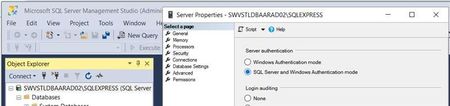
I actually found a locked thread that answers this after 20 or so comments. No answer is marked as accepted. There are other very similar threads. None have a screenshot to tell the story of what to do. It ends up I had to enable mixed mode auth for the db. One comment from 9 years ago eluded to this, but with no "How-to", so: Right-click on DB name at root of tree and select "Properties". Enable Mixed-Mode as shown: After this is done right-click on DB name again and select, "Restart". Viola! Well, for me anyway. I really really really think the installer should have told me to do this.2KViews0likes2Comments
Workflow(?) Error - Conversion from type 'DBNull' to 'String' is not valid.
Good day all. I created a New Document Request (NDR) for our system. We are trying to test it out now. I can start the process, but the next person in line gets the Conversion from type 'DBNull' to 'String' is not valid error. There are four options for him to vote on; Assign Drafter - A, Assign Drafter - B, Reject, and Cancel. All options, except for Cancel, cause the error. I cannot figure out where this is coming from. I didn't have any problems when I ran this as an admin. I mirrored this request to our ECO process. I've checked the Lifecycle Map to make sure all paths have a role assigned. I looked at the Workflow Process and can't understand why this is happening. This shouldn't be caused by the notifications, they work fine when I start the process. Any suggestions would be grateful. Thank you.Solved4.1KViews0likes1Comment